

Salesforce continues to focus on making development simpler, faster, and more reliable. With every major release, the platform removes unnecessary complexity and gives developers cleaner ways to build business solutions. The Spring ’26 release follows this direction by introducing a native and more intuitive way to generate PDF documents using Apex.
This release adds the Blob.toPdf() method, which allows developers to create PDF files directly from Apex code. The result is a solution that is easy to understand, easy to maintain, and suitable for real business use.
Why PDF Generation Needed an Upgrade
For many years, generating PDFs in Salesforce required extra steps. Developers had to rely on Visualforce pages rendered as PDFs or use third-party tools. While these approaches worked, they often felt heavy for simple requirements.
Even for basic use cases such as invoices or receipts, teams needed to create separate pages, manage dependencies, and explain complex logic. This increased development time and made long-term maintenance harder.
Salesforce addressed this gap in Spring ’26.
What Spring ’26 Brings
Spring ’26 introduces a new Apex method called Blob.toPdf(). This method allows developers to convert HTML content directly into a PDF from Apex. There is no need to create a Visualforce page only for PDF rendering.
This change keeps business logic in one place and reduces the number of components required for document generation. It also aligns better with modern backend-driven automation.
What Is Blob.toPdf() in Simple Terms
The Blob.toPdf() method takes HTML content as input and returns a PDF file as a Blob. Salesforce uses its existing and trusted PDF rendering engine in the background to generate the document.
From a developer’s point of view, the process is straightforward. You write simple HTML, pass it to the method, and receive a ready-to-use PDF file. That file can then be saved, attached to records, or shared with users.
How the PDF Is Created Behind the Scenes
When the method runs, Salesforce processes the HTML using its built-in PDF engine. Developers do not need to manage rendering logic or user interface components. Everything happens within Apex.
Once the PDF is generated, it can be stored as a Salesforce File using the ContentVersion object. This allows users to access the document from the Files tab or directly from related records.
A Real Business Example
Consider a company that wants to generate an invoice PDF after an order is completed. The invoice should be saved in Salesforce so that users can view or download it later.
With Spring ’26, this requirement can be handled entirely in Apex. The system generates the PDF automatically and stores it in Salesforce without any manual steps
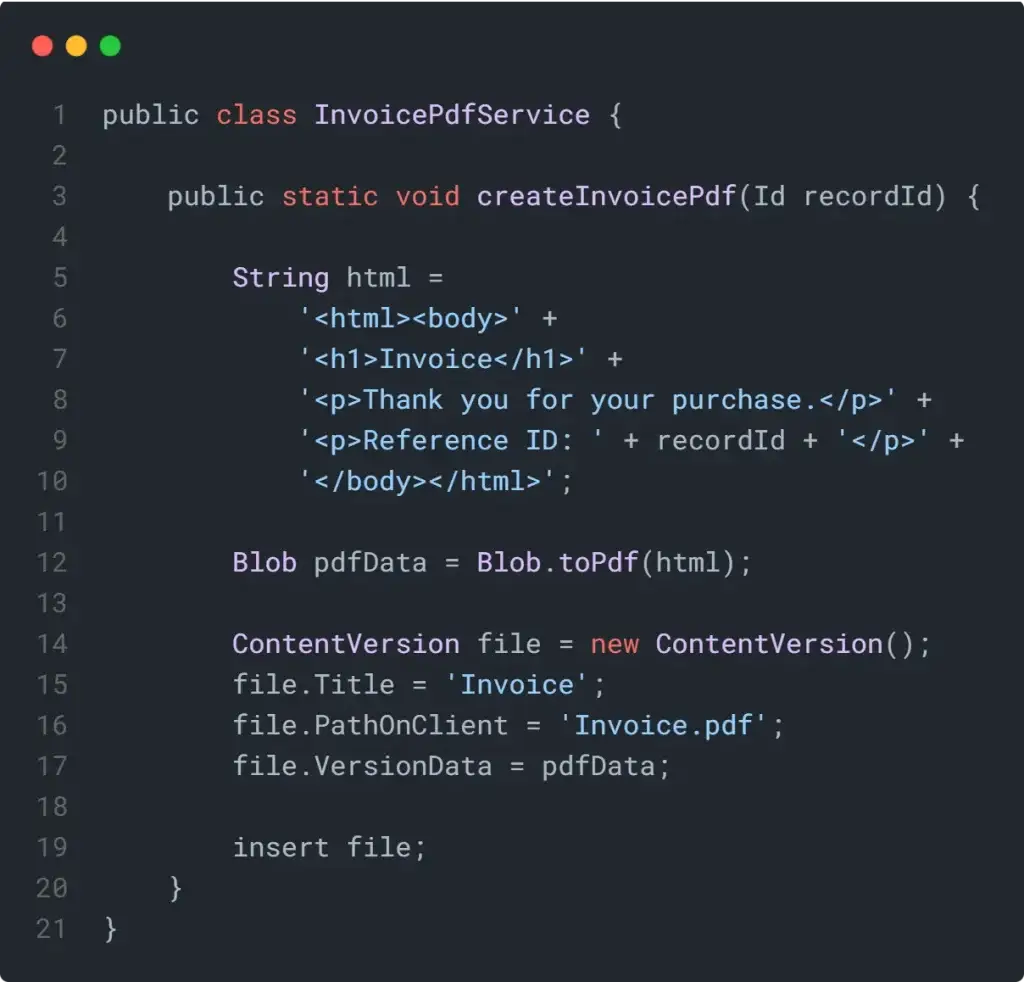
Apex Example: Generate and Store a PDF


Also Read: Apex Code Best Practices
What This Code Does
The code creates simple HTML content that defines what appears in the PDF. The Blob.toPdf() method converts the HTML into a PDF file. The resulting file is then saved as a Salesforce File.
This approach keeps the logic clean and easy to follow. There are no extra pages or external tools involved.
What Happens After the Code Runs
After execution, a PDF file is created and stored in Salesforce. Users can find the document in the Files section or in the related record’s file list. From there, they can preview or download the PDF.
This works well for automated processes, user actions, or scheduled jobs.
Why This Matters for Businesses
This feature reduces development effort and improves long-term maintainability. It allows teams to automate document generation in a clean and controlled way. For organizations that rely on invoices, reports, or certificates, this approach improves consistency and efficiency
Conclusion
The Spring ’26 release introduces a meaningful improvement with native PDF generation in Apex. The Blob.toPdf() method removes unnecessary complexity and enables a clearer, more professional way to handle document automation in Salesforce.
For teams looking to build scalable and easy-to-maintain solutions, this feature is a strong step forward.