
Building secure, seamless connections between Salesforce and external applications requires a strong security layer. The Salesforce Connected App serves as that gateway. It helps manage identity, authentication, and secure API access.
Whether you are setting up real-time integrations with an external ERP system, configuring automated workflows in Postman, or working with enterprise OAuth flows, knowing how to configure this feature is essential.
A Salesforce Connected App is a Salesforce framework that lets external applications integrate securely with Salesforce using APIs and standard protocols such as OAuth 2.0, OpenID Connect, and SAML. In simple terms, it acts as a trusted bridge between Salesforce and external systems so only authorized apps can access Salesforce resources. This is why Salesforce connected app OAuth is such an important concept for secure integrations.
If you want to understand the broader integration landscape, you can also explore Salesforce Integration Interview Questions for more context on related concepts.
In this guide, we will explain how to create a connected app in Salesforce, walk through the setup process step by step, cover the key OAuth scopes, and show you how to apply the right security policies.
Prerequisites Before You Begin Configuration
Before creating a Connected App, make sure you have the following ready:
- System Administrator profile access or the “Customize Application” permission
- A valid callback URL from the target external application
- A clear understanding of the access level your integration needs
- A testing client like Postman for endpoint validation
Testing Tip: For testing purposes, you can use the public Postman callback URL: https://oauth.pstmn.io/v1/callback
Step-by-Step Guide: How to Create a Connected App in Salesforce
Open App Manager & Create a New Connected App
Go to the Setup menu in Salesforce and search for App Manager in the Quick Find box. Click the New Connected App button in the top-right corner to open the configuration page.

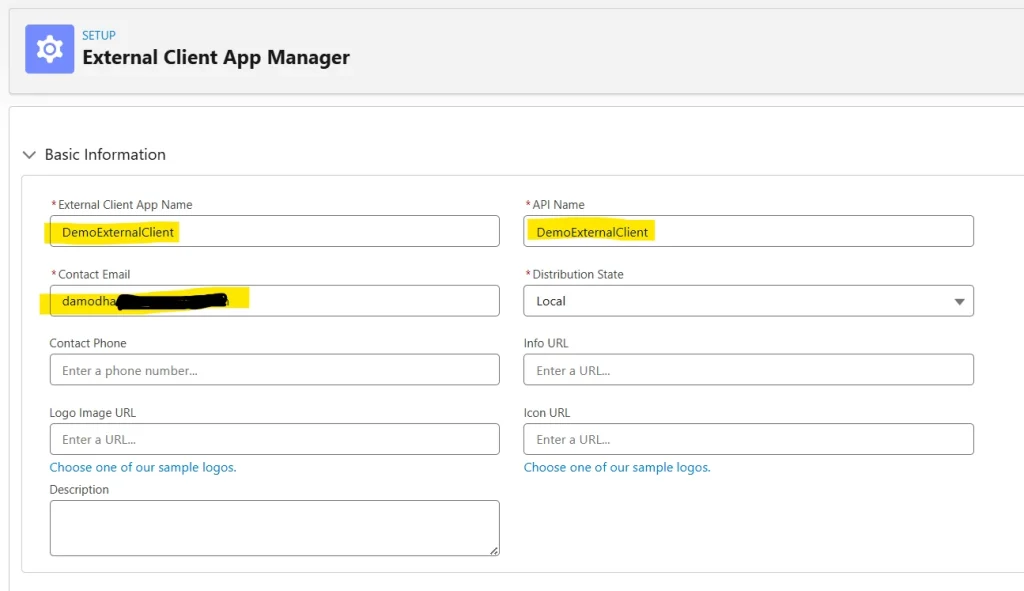
Enter Basic App Details
Add a Connected App name, such as Enterprise_ERP_Integration. The API name will auto-populate. Enter a valid email in the Contact Email field for alerts.
Demystifying Essential OAuth Scopes
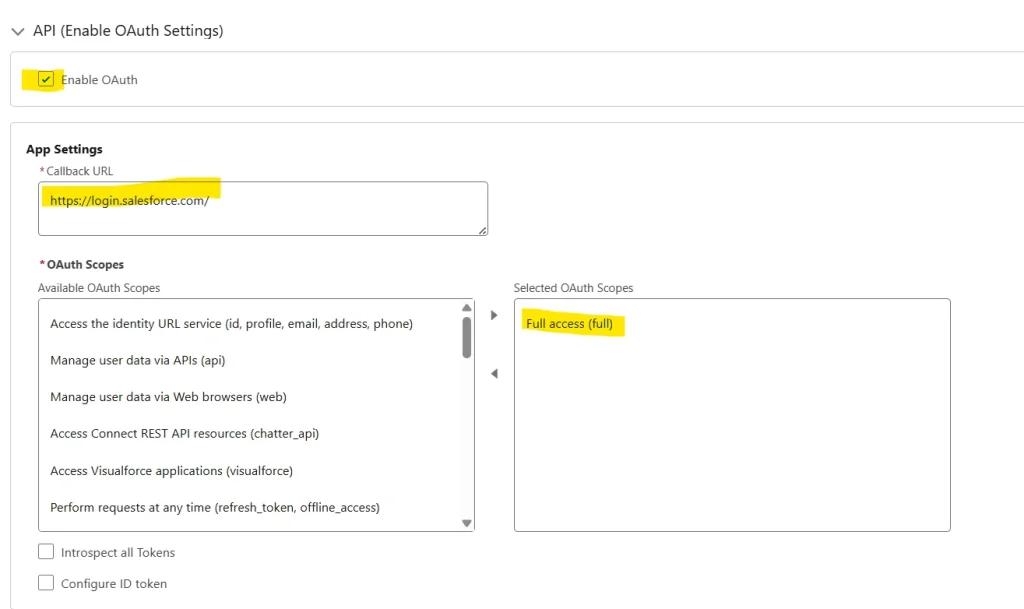
Choosing the right OAuth scopes is important for maintaining a secure least-privilege model. Avoid selecting unnecessary permissions, especially Full Access, unless your use case truly needs it.
Scope Technical Purpose api Allows programmatic access to Salesforce business data through REST, SOAP, or Bulk API endpoints. refresh_token lets the external application request new access tokens automatically without requiring user re-authentication. Web allows secure API access to external web applications built on external servers.
This is the core of Salesforce Connected App OAuth configuration. The scopes you choose determine what the external application can do and how securely it can connect.
If you are preparing for interviews, this is also a useful topic to review alongside Salesforce Integration Interview Questions.
Configuring Security Policies and IP Relaxation
Creating the app is only the first step. You also need to define its boundaries with security policies.
To configure administrative app policies:
- Go to Setup and open App Manager.
- Find your Connected App, click the dropdown arrow, and select Manage.
- Click Edit Policies.
From this interface, administrators can control:
- Profile or permission set pre-authorization rules
- Permitted user access types
- Inbound IP relaxation constraints
- Refresh token lifecycle policies
- OAuth session timeout rules
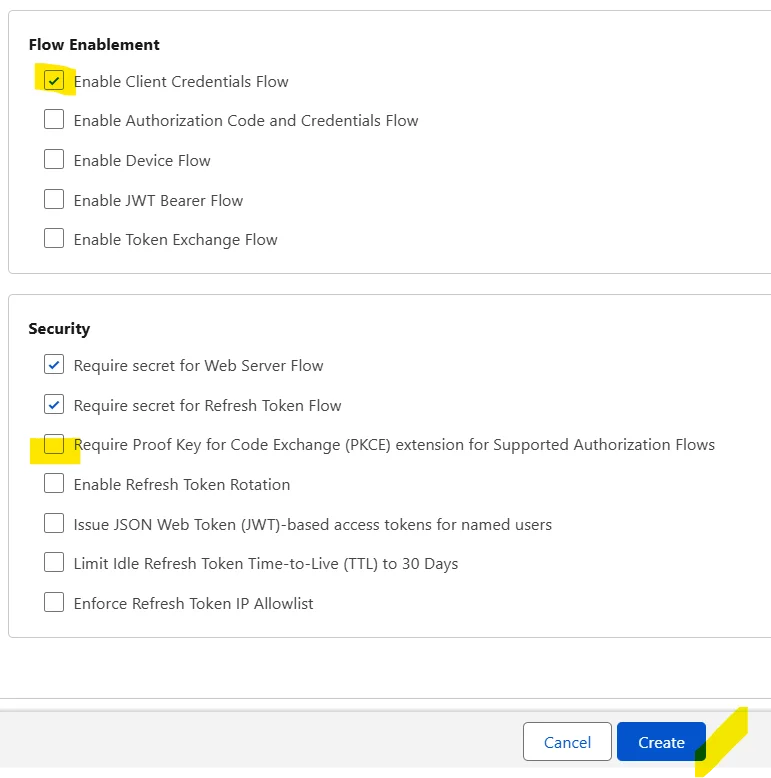
This is one of the most commonly used authentication methods for system integrations. Uncheck Require Proof Key for Code Exchange (PKCE). After reviewing the settings, click Create.
The Connected App Policy Configuration Matrix
Once the app is live, configure its execution rules carefully.
Configuration Policy Setting Option Operational Behavior Permitted Users Admin-approved users are pre-authorized. Users assigned through Profiles or Permission Sets bypass manual authorization prompts. Permitted Users: All users may self-authorize. Any user with valid API credentials can manually grant access through the OAuth approval screen. IP Relaxation: Enforce IP restrictions. Validate inbound API requests against the organization’s login IP ranges. Refresh Token Policy: The refresh token is valid until revoked. The API session remains active until an administrator explicitly revokes it.
How to Extract Client ID and Client Secret Safely
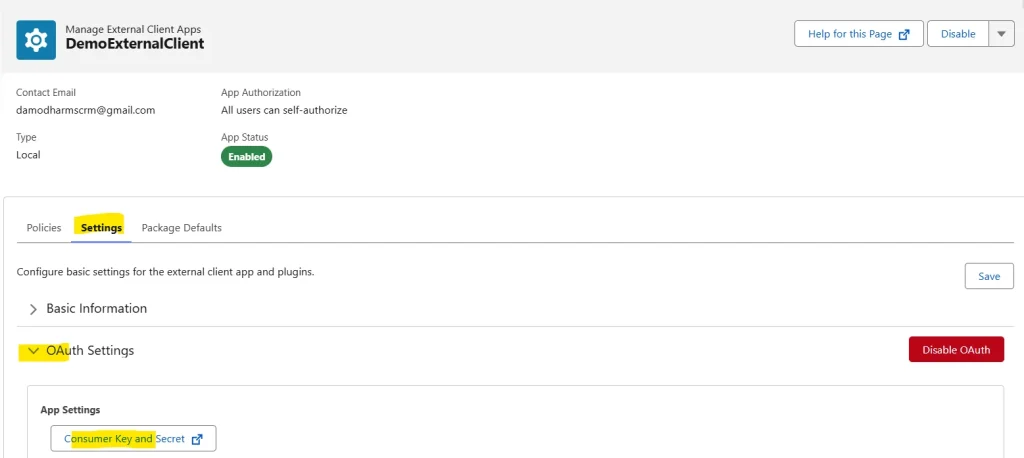
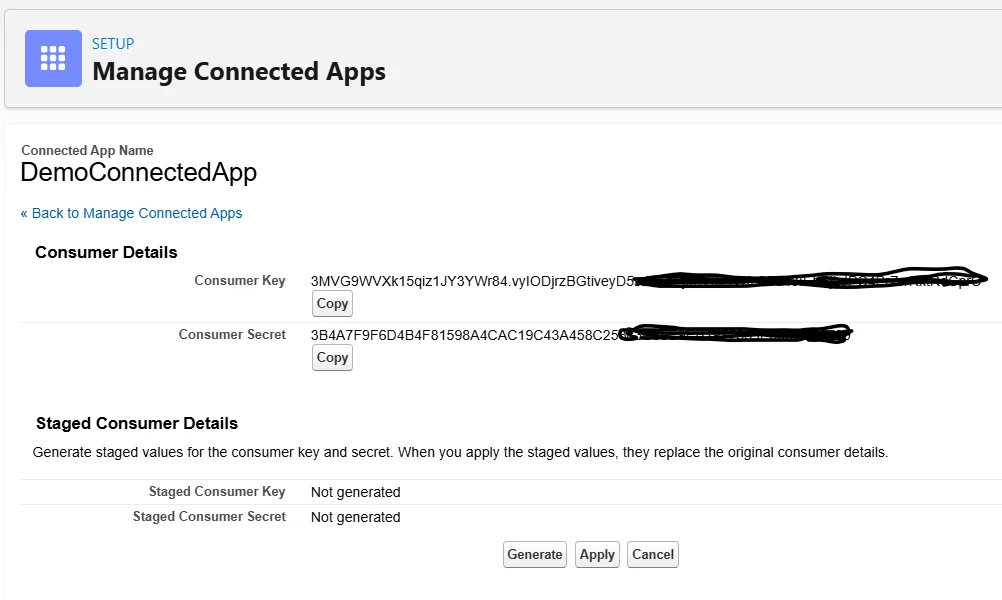
After the app is saved, click Manage Consumer Details to view the Client ID and Client Secret.
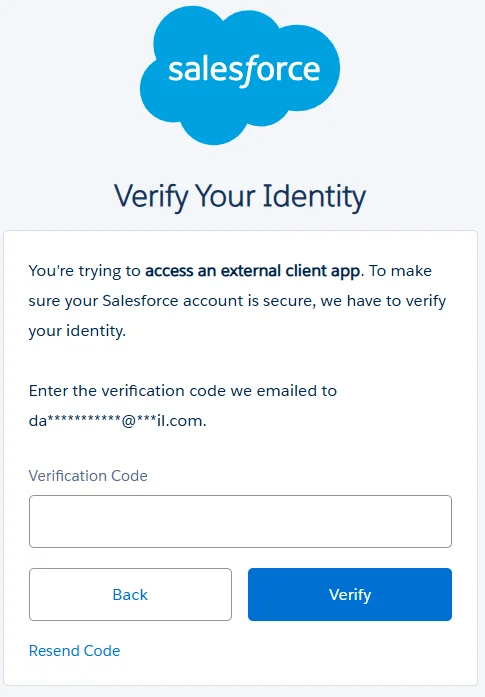
Salesforce uses security checks before revealing the secret. In some cases, you may need to complete an MFA challenge or enter a verification code before the keys are shown.
Security Alert: Never commit your Consumer Key or Consumer Secret to public code repositories like GitHub. Store these values securely as environment variables or use Named Credentials within Salesforce.
The Salesforce Connected App should always be handled with care because it grants external access to important org resources. Strong secret management is essential.
Post-Setup Verification: Testing with Postman
Once the app is configured, test the connection:
- Open Postman and create a new request.
- Go to the Authorization tab and choose OAuth 2.0.
- Enter the Access Token URL: https://login.salesforce.com/services/oauth2/token
- Add your Client ID, Client Secret, and Callback URL.
- Click Get New Access Token.
If everything is set up correctly, you should receive a successful response and an active access token.
This testing step helps confirm that your Salesforce Connected App is working as expected after setup.
Troubleshooting Common Connected App Errors
Error: invalid_client_id
Cause: The Consumer Key may contain extra spaces, or the app may still be propagating across servers. Wait a few minutes and try again.
Error: redirect_uri_mismatch
Cause: The Callback URL in Postman or your code does not exactly match the one configured in the Salesforce Connected App settings. Even a trailing slash can trigger this issue.
Error: invalid_grant
Cause: This often happens because of invalid credentials, an expired token, or IP restrictions blocking the request source.
If the issue continues, review the configuration inside the Salesforce Connected App and check the callback URL, OAuth settings, and token policy.
Best Practices for Connected Apps
To keep your Connected App secure and reliable over time, follow these best practices:
- Restrict scopes to the minimum required by the user profile
- Assign explicit Profiles or Permission Sets instead of allowing global self-authorization
- Audit integration logs regularly and rotate secrets when needed
- Revoke unused or legacy app connections to reduce security risks
A well-configured Salesforce Connected App improves security and makes integrations easier to maintain.
Related Resources
- Salesforce Einstein Trust Layer
- Build an AI Chatbot with Agentforce
- Salesforce Integration Interview Questions
Conclusion
A Salesforce Connected App is a key Salesforce security feature for building scalable and reliable integrations with external applications. By understanding how to create a connected app in Salesforce, choosing the right OAuth scopes, and applying proper security policies, you can build secure integrations with confidence.
When used correctly, the Salesforce Connected App supports safe authentication, cleaner API access, and better control over external systems. That is why learning Salesforce Connected App OAuth is so valuable for admins and developers alike.
Explore More Blogs