
Salesforce and QuickBooks Integration Issues Appear After Go Live
A Salesforce integration with QuickBooks can look stable during setup and still create operational problems later. One typical example is reconciliation between CRM and accounting data, where financial records no longer align across systems. Opportunity amounts no longer match invoice totals. Customer records appear duplicated in both Salesforce and QuickBooks. Payment status in Salesforce no longer reflects what is recorded in QuickBooks.
And without unified data between CRM and accounting systems, financial forecasting becomes unreliable. In fact, around 39% of teams report concerns over forecasting accuracy, while 49% say poor data quality directly blocks financial decision-making.
In many cases, the issue is not caused by the connector itself. Problems usually appear because the systems were connected before object ownership, mapping logic, financial rules, and sync behavior were fully defined. And this becomes more visible as data volume increases and more teams depend on the integration for reporting, invoicing, or revenue tracking.
This article provides a technical checklist for preparing Salesforce and QuickBooks before integration. It focuses on decisions that define how data behaves across both systems: ownership rules, sync direction, object mapping logic, API constraints, and reconciliation risks that typically only surface after go-live with Salesforce integration with QuickBooks.
Benefits of Salesforce Integration with QuickBooks
Before going to the checklist, it is important first to understand the benefits of this integration. Connecting Salesforce with QuickBooks improves how sales and finance teams work with the same customer and revenue data. Here are some of them:
| Benefits of Salesforce Integration with QuickBooks | |
|---|---|
| Benefit | Description |
| Reduction of manual data entry | Synchronization of customers, invoices, and payment records between Salesforce and QuickBooks |
| Improved financial data consistency | Alignment of sales and accounting records across both systems |
| Invoice and payment visibility | Sales teams can view invoice status and payment progress directly from Salesforce |
| Better finance context | Finance teams gain accurate sales context for billing, reconciliation, and revenue tracking |
| Improved reporting accuracy | Alignment of Salesforce opportunity data with actual financial outcomes in QuickBooks |
| Faster month-end close | Reduced manual reconciliation between systems improves closing cycles |
| Reduced data errors | Fewer duplicate entries and fewer inconsistent record updates across teams |
Salesforce QuickBooks Integration Checklist
Before any integration setup, the focus should shift from connectivity to design control.
This means defining how records are created, updated, and passed between Salesforce and QuickBooks, and making those rules explicit before configuration starts. Once these decisions are locked, the integration behaves predictably across scaling data volumes and multiple business teams.
The checklist below is structured around those controls and should be reviewed before selecting any connector, middleware, or API approach.
1. Planning & Scope Definition
Start with system behavior, not configuration.
First, define sync direction. In most implementations, one system must act as the primary source of truth. Common patterns are Salesforce to QuickBooks for sales-driven invoicing, or a controlled two-way sync when finance updates payment status back into CRM.
Next, define object mapping clearly:
- Accounts / Contacts → Customers
- Products / Price Books → Items
- Opportunities → Invoices or Estimates
Then lock the trigger logic. This is where integrations usually fail when it is not clearly defined. Invoice creation in QuickBooks is not tied to a single Salesforce event: it depends on how the business runs billing.
For example:
- Opportunity Stage = “Closed Won” (standard sales-led billing)
- Contract activation or Order confirmation (controlled billing after approval or signature)
- Custom “Ready for Invoicing” field (finance-controlled release before billing)
Each option changes when revenue is recognized and how financial data is pushed into QuickBooks, so this decision needs to be fixed before any integration setup begins.
At this stage, avoid technical setup. Focus on business rules that decide when financial records are created.
2. Data Preparation
Integration does not fix data problems. It carries them into both systems and multiplies inconsistencies across finance and sales reporting. For example, a recent Salesforce study found that more than 25% of contact records in typical customer databases are duplicates.
Before any sync is activated, data in Salesforce and QuickBooks must be brought to a stable and consistent state. The first step is basic cleanup, focused on removing structural noise that will break matching logic later.
This typically includes:
- Removing duplicate Accounts and Contacts across Salesforce and QuickBooks,
- Standardising naming conventions for Companies and Products,
- Reviewing inactive or obsolete records and preventing them from entering the sync scope.
Once the dataset is clean, the next step is identity alignment. This is the core control mechanism that prevents duplicate customers from being created in QuickBooks. The most common approach is defining clear matching keys across systems, such as Email for Contacts, consistent Account naming rules, and Salesforce External ID fields used as a stable cross-system reference.
After identity rules are defined, financial attributes must be aligned before any integration goes live. These elements directly impact invoice accuracy and often sit outside standard CRM configuration. Key areas include currency handling for multi-currency environments, mapping of tax codes between systems, product SKU consistency, and any custom pricing fields that influence invoice totals.
If this layer is not handled before configuration, the integration may still execute successfully from a technical perspective, but financial outputs in QuickBooks will not be reliable. In most cases, discrepancies seen later in reconciliation originate from this preparation stage rather than from the integration tool itself.
3. Integration Method Selection
Integration architecture should be driven by business complexity and financial process requirements, not by implementation convenience or short-term setup speed. In Salesforce QuickBooks scenarios, this decision directly impacts how reliable invoicing, reconciliation, and reporting will be after go-live.
1. Pre-built connectors (AppExchange solutions)
This category covers standard integration tools used for straightforward Salesforce QuickBooks synchronization, typically when Opportunity-to-Invoice flows follow a predictable pattern. These solutions usually provide basic field mapping, prebuilt templates, and standard error handling.
When selecting a connector from AppExchange (now AgentExchange), it is important to apply a set of evaluation criteria rather than focusing only on features. Check whether the solution is truly Salesforce-native and how data is handled across systems, including whether any external storage layer is introduced outside Salesforce. Vendor trust is also critical, especially when financial data is involved, so review security practices, compliance posture, and Salesforce QuickBooks integration reviews before committing to a solution.
When searching for QuickBooks Salesforce connectors on AppExchange, Breadwinner was found among the top-listed solutions, with strong user ratings and consistent visibility in this category.
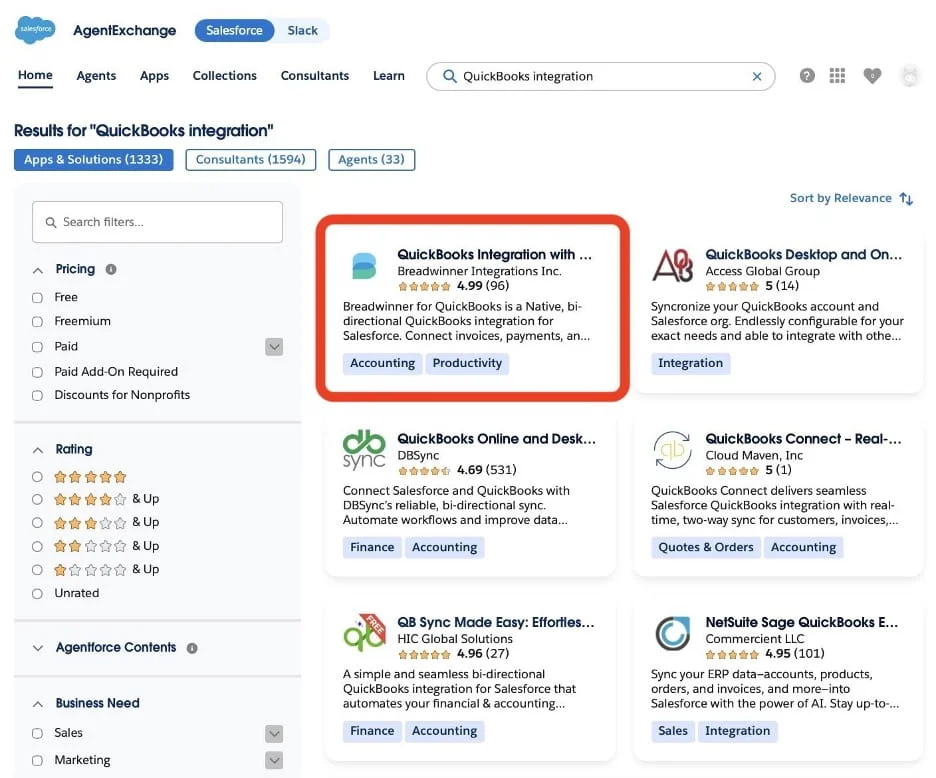
QuickBooks integration tools on AppExchange
Breadwinner is an example of a Salesforce-native AppExchange connector that meets all the criteria, including native alignment with Salesforce data models, secure handling of financial data, and a design that keeps processing within the Salesforce ecosystem rather than relying on external data storage layers.
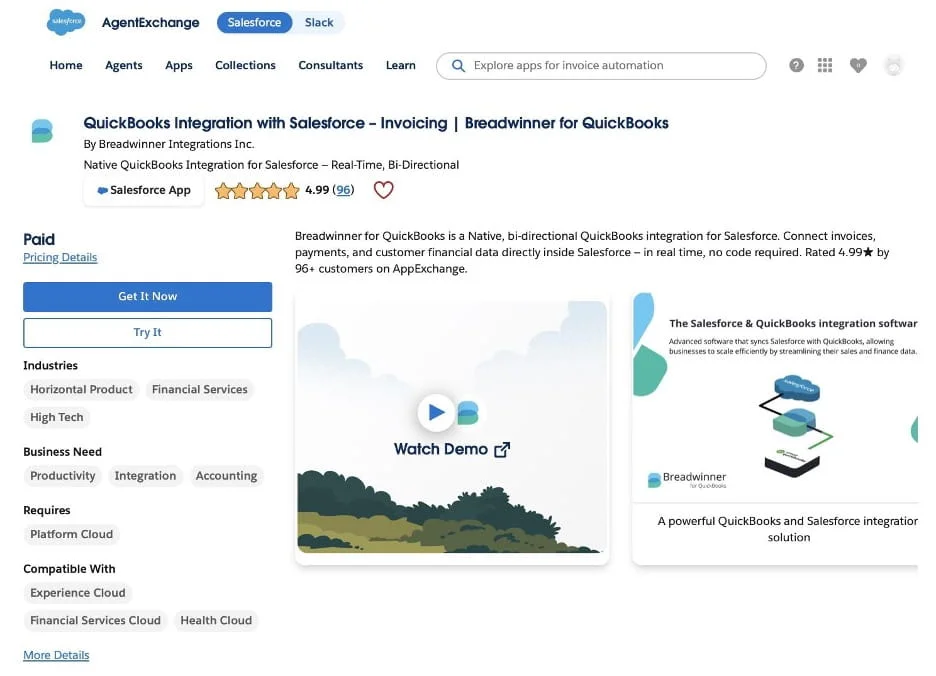
Breadwinner for QuickBooks on AppExchange
2. Middleware platforms
Middleware is typically introduced when integration requires transformation layers, conditional logic, or orchestration across multiple systems.
While middleware can be a good choice for some companies, it is important to consider the trade-offs before selecting this approach. Setup typically takes longer compared to pre-built connectors, as it requires additional configuration, mapping logic, and sometimes data transformation layers between Salesforce and QuickBooks. The cost is also generally in the medium to high range, depending on the complexity of the tool and the number of systems involved.
3. Custom API integration
Custom integration is used when neither connectors nor middleware can fully support the required business logic. This approach relies on QuickBooks APIs via the Intuit Developer platform and Salesforce Apex or external orchestration services. It provides maximum control over data flow, invoice generation logic, and reconciliation rules, but also introduces higher development and maintenance effort, as well as long-term ownership requirements within the technical team.
The main trade-offs are increased implementation time, higher initial development cost, and ongoing dependency on internal technical resources for support, monitoring, and future changes. Unlike pre-built or middleware solutions, updates and adjustments to business logic must be handled through code, which adds operational overhead but also ensures full flexibility when requirements are complex or highly specific.
4. Configuration & Testing
Once the integration approach is selected, configuration should begin in a Salesforce Sandbox and a QuickBooks test environment before production data is used. Even well-designed integrations can produce incorrect financial outputs if sync behavior or field alignment is not validated early.
The exact configuration process depends on the selected connector. In Salesforce-native solutions such as Breadwinner, setup is performed directly inside Salesforce after installation from AppExchange, with QuickBooks connected and financial data exposed as Salesforce objects.
Using Breadwinner as an example, the configuration process typically includes:
- Installing Breadwinner from AppExchange and accessing the Setup tab in Salesforce,
- Connecting QuickBooks Online to Salesforce using OAuth authentication,
- Matching QuickBooks Companies to Salesforce Accounts to establish the financial data link,
- Adding Breadwinner components and related lists to Salesforce page layouts (for example, Accounts and Opportunities),
- Configuring which financial data is visible inside Salesforce, such as invoices, payments, and account balances,
- Validating that QuickBooks data is correctly displayed and accessible within standard Salesforce records after synchronization.
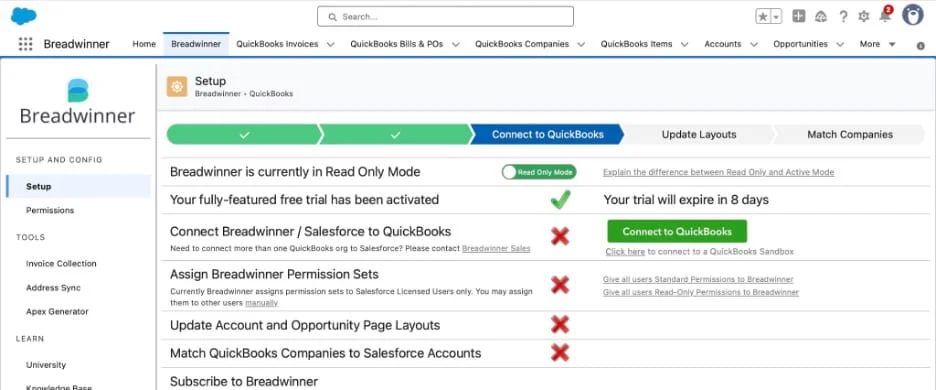
After, instead of running full synchronization immediately, testing should be performed using a small dataset to validate end-to-end behavior.
A typical validation cycle includes:
- Testing with 5–10 controlled records only
- Verifying the full lifecycle from Opportunity → Invoice → Payment
- Validating tax, discount, currency, and total calculations
- Confirming duplicate handling and customer matching behavior
- Reviewing sync results and error logs before scaling data volume
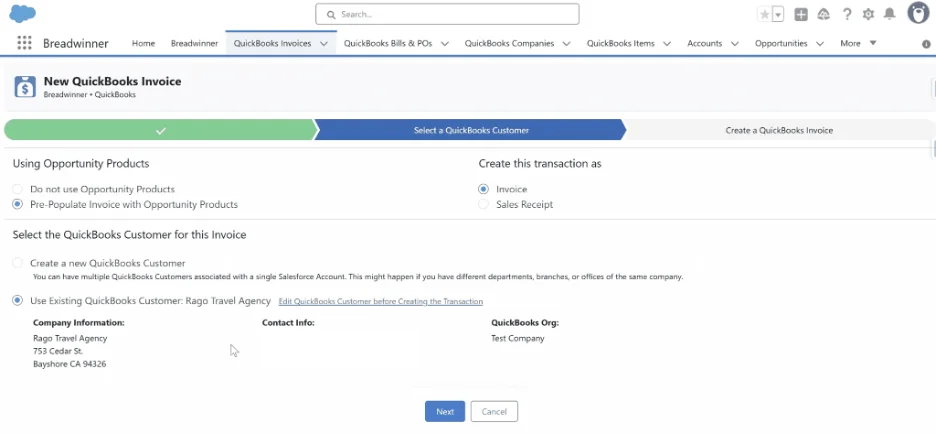
Financial validation is critical. In most Salesforce and QuickBooks online integrations, issues do not appear during basic record sync, but during financial interpretation of data, especially invoice totals, tax handling, and reconciliation accuracy after records are already transferred successfully.
5. Go-Live & Operational Control
Go-live should be treated as a controlled transition, not a final step. Even when configuration and testing are completed successfully, production data introduces new variables such as volume, real customer behavior, and edge cases in financial records.
Before full activation, it is important to re-run validation using production-like data. This helps confirm that earlier assumptions from sandbox testing still hold under real data conditions, especially around invoice creation, taxes, discounts, and currency calculations.
Once the integration is live, the focus shifts from configuration to operational control and monitoring.
After go-live:
- Monitor integration logs daily during the first 5–7 days to detect sync failures or unexpected behavior,
- Track failed transactions, collision errors, and customer matching issues as they appear,
- Validate a sample of real customer invoices against their originating Salesforce Opportunities to ensure financial consistency,
- Review discrepancies in totals, taxes, or payments and adjust mapping or sync rules where required,
- Confirm that duplicate prevention and record matching behave correctly under production load.
In most integrations, stability is not defined by successful initial syncs but by consistency between CRM intent and accounting execution over time. Even well-configured integrations require ongoing reconciliation to ensure that sales data and financial records remain aligned as business activity scales.
Conclusion on Building a Stable Salesforce QuickBooks Setup
QuickBooks to Salesforce integration stays reliable only when financial rules are clearly defined before any technical setup starts. Once ownership of data, sync direction, and invoice creation logic are agreed and fixed, the system behaves in a predictable way after go-live.
Native to Salesforce connectors, such as Breadwinner, bring QuickBooks financial data into Salesforce in a structured way based on Salesforce data models. They help reduce mapping gaps between systems and keep the connection between opportunities and invoices more consistent compared to custom or external integration approaches.
The main risk is not the integration tool itself, but missing alignment between Salesforce and QuickBooks on how financial records are created and interpreted. When this logic is clear, the integration remains stable. When it is not, inconsistencies appear in invoices, customers, and reporting, regardless of the solution used.
Explore More Blogs